How to Send Simcha Invitations on WhatsApp or by Text Message
Which file to send, how to send it to many people at once, how to reach kosher and flip phones, and ready-to-copy messages in Yiddish, Hebrew and English to go with the picture.
Updated November 8, 2026
Most invitations now arrive on a phone
Today most guests first see a simcha invitation on their phone: in a family WhatsApp group, a text message, or forwarded by a neighbor. A phone invitation costs nothing to send, reaches out-of-town relatives in seconds, and works even for a sholom zucher decided on Thursday night.
But it only works if it opens, looks sharp, and is easy to read. This guide covers which file to send, how to send it on iPhone, Android, WhatsApp and a flip phone, how to reach many people politely, and what to write next to the picture.
Which file to send: the short answer
When you order an invitation on our site, you get three downloads after paying:
- PDF – for printing at a print shop or at home.
- "Full quality – for printing" JPG – a large, sharp picture (2550 pixels wide, 300 dpi), for printing and for anyone who wants every detail.
- "Small – for texting (MMS), under 1 MB" JPG – the same invitation as a lighter picture (about 650 KB in our test), made for WhatsApp, text messages and email.
For phones, send the small texting JPG. It opens right in the chat as a picture, the Hebrew and English letters stay clear on a phone screen, and it is light enough to go through almost any texting route. Keep the full-quality JPG and the PDF for printing.
Designs that have an animated version can add a GIF for a small extra charge. On those orders you also get the GIF and a smaller GIF for texting. Right now most of our designs come as a still picture; the GIF option appears only on designs that have one.
| Where it goes | Best file | Why |
|---|---|---|
| WhatsApp chat or group | Small texting JPG | Shows instantly as a picture, clear on a phone |
| Text message (iPhone, Android) | Small texting JPG | Under 1 MB, so it gets through picture messaging |
| Flip phone / kosher phone | Small texting JPG | Light file, opens on simple phones |
| Small texting JPG (add the PDF if they will print) | Opens on any phone or computer | |
| WhatsApp Status | Small JPG or the small GIF | Fills the screen, loads fast |
| Print shop | Exact page size | |
| Print at home, shul notice board | PDF or full-quality JPG | Sharp at full size |
Why a smaller file works better on phones
A photo from a modern phone camera, or a print-quality invitation, can be several megabytes. That is fine for printing, but not for picture messages. Many phone carriers limit the size of a picture message (MMS), often to around 1 MB. The exact limit is different from carrier to carrier and from phone to phone, so there is no single number that is right for everyone.
When a picture is bigger than the limit, one of two things usually happens:
- The phone or the carrier shrinks the picture automatically. The invitation arrives, but small Hebrew letters, nekudos and the fine lines of the design can come out blurry or blocky.
- The message fails or gets stuck "sending", and you may not notice until a guest says they never got it.
WhatsApp also shrinks pictures sent in normal quality. A picture that is already a sensible size loses very little. That is why we made a separate texting file: small enough for picture messaging, sharp enough that names, date and address are easy to read.
Tip: never send a screenshot of the invitation. A screenshot adds your phone's status bar and battery icon, cuts the edges, and is often a bigger file than the texting JPG. Send the file you downloaded.
PDF or JPG on a phone?
A JPG is a picture. In WhatsApp or in a text message it shows right in the chat, full width, and the guest sees the invitation without tapping anything. They can save it to their photos in one tap.
A PDF is a document. On WhatsApp it arrives as a file with a small preview; the guest has to tap it to open it, and on some phones it opens in another app. Most flip phones and many kosher phones cannot open a PDF at all. A PDF is the right file for a print shop, and it is useful by email for someone who wants to print a copy, but for phones, send the JPG.
The animated GIF option
On designs that have an animated version, you can switch the GIF on when you order. A GIF is a picture that moves, for example sparkles or a gentle shine on the frame, and it plays over and over in the chat. Orders with a GIF get two extra files: the full GIF and a smaller GIF for texting.
- On WhatsApp, a GIF plays as a short moving picture in the chat. Send the small GIF; it loads faster for guests on a slow connection.
- In text messages, many smartphones play GIFs, but some phones, especially simpler and older ones, show only the first frame or a still picture. That is fine, as long as the first frame shows the full text.
- For flip phones and kosher phones, send the still small JPG. It is the safest choice.
A good habit: send the GIF to family groups where everyone has a smartphone, and the small JPG everywhere else.
Step by step: getting the file onto your phone
- Order your invitation on your phone (or on a computer, then send the file to your phone).
- On the thank-you page after paying, tap "Small – for texting (MMS), under 1 MB".
- iPhone: if the picture opens on the screen, press and hold it and tap Save to Photos (on some versions, "Add to Photos"). If it downloads instead, it goes to the Files app, in the Downloads folder; open it there, tap the share button and tap Save Image.
- Android: the file usually goes to the Downloads folder. You can open it from the notification, or from the Files app, and it will also appear in your gallery on most phones.
- Open the picture once to check it: names, date, time and address.
Download all three files right away and keep them in one folder named after the simcha.
Step by step: sending on WhatsApp
- Open the chat or the group you want to send to.
- Tap + (iPhone) or the paperclip / attach icon (Android), then Photos or Gallery.
- Choose the invitation picture.
- Before sending, type your message in the caption box ("Add a caption"). See the sample messages below.
- Newer versions of WhatsApp show an HD button before you send. With our small texting file, standard quality is usually fine; tap HD if you want the sharpest copy and your guests have good internet.
- Tap Send.
To send to several chats, you can forward the picture: press and hold the sent picture, tap Forward, and choose chats. WhatsApp only lets you forward to a few chats at a time, so for a long list use a broadcast list (below).
Send as a picture, not as a document
WhatsApp also lets you attach a file as a Document. That keeps the file exactly as it is, but it arrives as a file icon that guests must tap to open. For invitations, send as a picture. Use "Document" only when you send the PDF or the full JPG to someone who wants to print.
Step by step: sending a text message (MMS) on iPhone
- Open Messages and start a new message, or open the chat with the person.
- Tap the + next to the text box, then Photos, and pick the invitation.
- Type your message and tap the send arrow.
A blue bubble means it went as iMessage (iPhone to iPhone, over the internet). A green bubble means it went as a regular text or picture message (SMS/MMS) through the carrier. Green-bubble pictures are where size limits matter, and where the small texting file helps most.
Two settings to check if pictures don't go through, in Settings → Messages (in newer versions it may sit under Settings → Apps → Messages):
- MMS Messaging should be on, or picture messages to non-iPhones cannot be sent.
- Low Quality Image Mode sends smaller, blurrier pictures. If your invitations come out fuzzy, turn it off.
Step by step: sending a text message on Android
- Open your messages app (on most phones it is Messages).
- Open the chat or start a new one.
- Tap the + or the picture / gallery icon next to the text box.
- Choose the invitation from your gallery or from Downloads.
- Type your message and tap send.
Some Android phones send pictures over the internet (RCS or "chat" messages) when both phones support it, and as regular MMS when they don't. The small texting file works well either way.
Step by step: kosher phones and flip phones
Many people in heimish communities use a kosher phone or a simple flip phone, by choice. For them, a text message is the invitation. Treat these guests exactly like everyone else; they just need the right file and sometimes a written version.
- Can the phone get pictures? Many flip phones receive picture messages (MMS). Some kosher lines block pictures completely, by the filter or by the plan. If you are not sure, ask, or simply send both the picture and a short text version.
- Send the small texting JPG. It is light enough for simple phones. Don't send the PDF or the GIF to a flip phone.
- Write the details in the message too. On a small screen, a full invitation picture can be hard to read. A one-line text with the simcha, day, time and address makes sure the guest has everything, even if the picture doesn't open.
- Send to each person on their own, or in small groups. Group picture messages on simple phones can come out as many separate messages, or not at all.
Sending from a flip phone: most flip phones have no web browser, so you cannot download the invitation on the phone itself. Download it on a computer or a family member's phone, then send it to the flip phone as a picture message (or copy it over with a cable or memory card, if the phone has one). From the flip phone: open Messages, choose New message, pick Insert or Attach → Picture, choose the invitation from the gallery or "My files", add the number and send. The menu names differ from phone to phone, but the steps are the same.
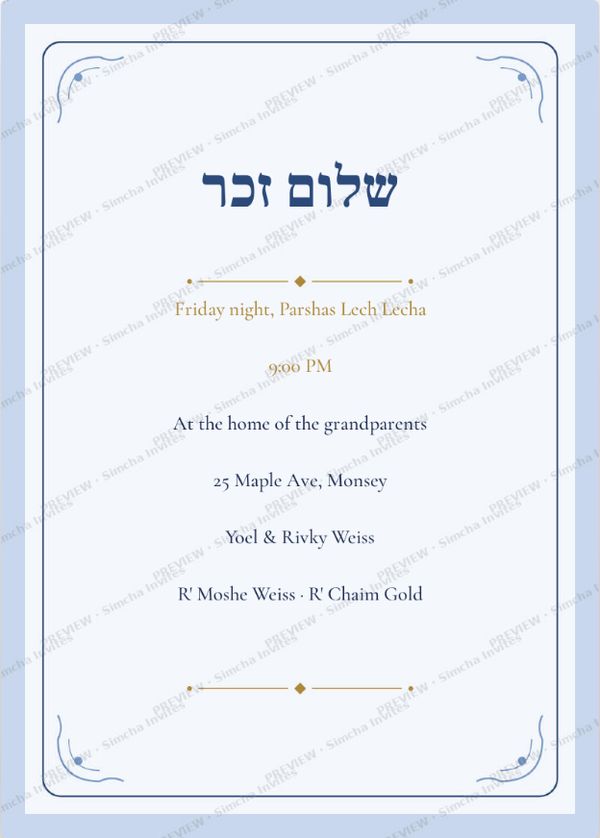
Mazel tov! Sholom Zucher for our new son, IY"H this Friday night, Parshas ___, from 9:00 PM, at ___ (address). We'd love to see you. – ___ family
שלום זכר לרגל הולדת בננו נ"י
אי"ה ליל שב"ק פרשת ___ משעה 9:00
בבית ___ (address)
מזל טוב! – משפחת ___
Sending to many people at once
A simcha invitation often goes to hundreds of people: family, shul, the yeshiva or school, neighbors, work. There are four main ways on WhatsApp, and each one is good for something different.
| Method | How it arrives | Good for |
|---|---|---|
| Broadcast list | As a private message from you to each person | Many guests who each get a personal message |
| Group | One message that everyone in the group sees | Family group, cousins, a class of parents |
| Status | On your Status for 24 hours | A wide circle, as an extra, not instead of a personal invite |
| Shul or community group | Posted by you or the admin | Shul members, the neighborhood |
Broadcast lists
A broadcast list sends the same message to many people, but each person gets it as a normal private message from you. They don't see who else got it, and their reply comes back to you privately, not to everyone.
- On iPhone: in WhatsApp, open Chats, tap the menu or the new-chat button and look for Broadcast lists (the place in the menu has moved in some versions; you may find it under "New broadcast" or "Lists").
- On Android: tap the three dots at the top, then New broadcast.
- Choose the contacts, name the list (for example "Bar Mitzvah – shul"), and send the picture with a caption.
Important: a broadcast reaches only people who have your number saved in their phone contacts. Someone who has never saved your number will not get it, and you won't see an error. For close family, the Rav, the Rebbe's gabbai or anyone you are not sure about, send a personal message.
Groups
A family group is the easiest place to send, but everyone sees every reply. A gentle "No need to reply in the group 🙂" helps. Don't add hundreds of people to a new group without asking.
WhatsApp Status
Posting the invitation on your Status shows it to your contacts for 24 hours. It is a nice extra for a wide circle, but people often skip Status, so it should not replace a personal invitation to anyone you really want to come.
Text messages to many people
One text to many numbers often becomes a "group text" where everyone sees every reply. For a large list, send in small batches, or one by one to the people who matter most.
Sending by email
Email is still the best way to reach some guests: older relatives who use a computer, business contacts, people abroad, and anyone who wants to print the invitation.
- Write a short subject line, for example "Invitation: Bar Mitzvah of ___, Parshas ___".
- Attach the small texting JPG so it opens on any phone. If the guest is likely to print, attach the PDF as well.
- Write the key details in the email text too: simcha, date, time, address.
- Put your own address in "To" and the guests in "Bcc", so the guest list stays private and nobody presses "Reply all".
What to write with the picture: sample messages
A short, warm line next to the invitation makes it personal. It also helps guests whose phones don't show the picture. Copy any of these and fill in the blanks.
Yiddish
מיט גרויס פרייד לאדענען מיר אייך איין
צום שלום זכר פון אונזער זון שיחי'
היינט פרייטאג צו נאכטס, פרשת ___
ביי ___ (address)
מיר וועלן זיך זייער פרייען אייך צו זען!
___ און משפחה
מיר זענען מתכבד אייך איינצולאדענען
צו דער בר מצוה פון אונזער זון ___ נ"י
די הזמנה איז צוגעלייגט.
עס וועט אונז מאכן א גרויסע פרייד אייך צו זען!
Hebrew
בשבח והודי' להשי"ת הננו מתכבדים להזמינכם
לשמחת התנאים של בננו ___ נ"י
שתתקיים אי"ה ביום ___ פרשת ___ בשעה ___
ב___
ההזמנה מצורפת. נשמח לראותכם!
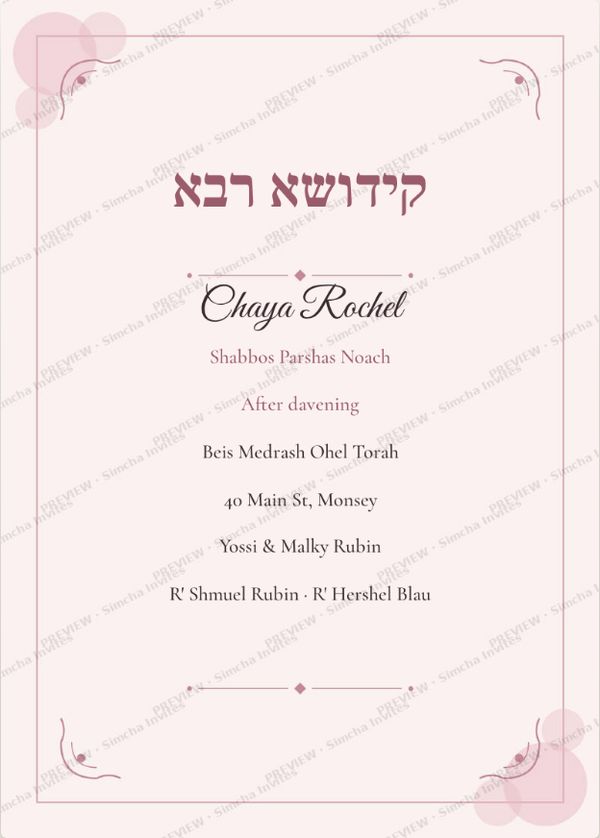
מזל טוב! מצורפת ההזמנה לקידושא רבא
לרגל הולדת בתנו תחי'
בשב"ק פרשת ___ אחר התפילה
נשמח מאד להשתתפותכם
English
Bilingual (for a mixed family group)
מזל טוב! We are happy to invite you to the Pidyon Haben of our son, IY"H Sunday, ___ at ___ PM, at ___.
ההזמנה מצורפת · The invitation is attached.
Reminders the day before
A short reminder helps, especially for a simcha that was announced weeks ago, or one where the time changed. Send it the day before, or on the morning of an evening simcha. Keep it short and send it only to the people who got the invitation; you don't need to attach the picture again, but you can.
מארגן אי"ה איז די בר מצוה פון ___ נ"י
___ אזייגער, אין ___
מיר ווארטן אייך!
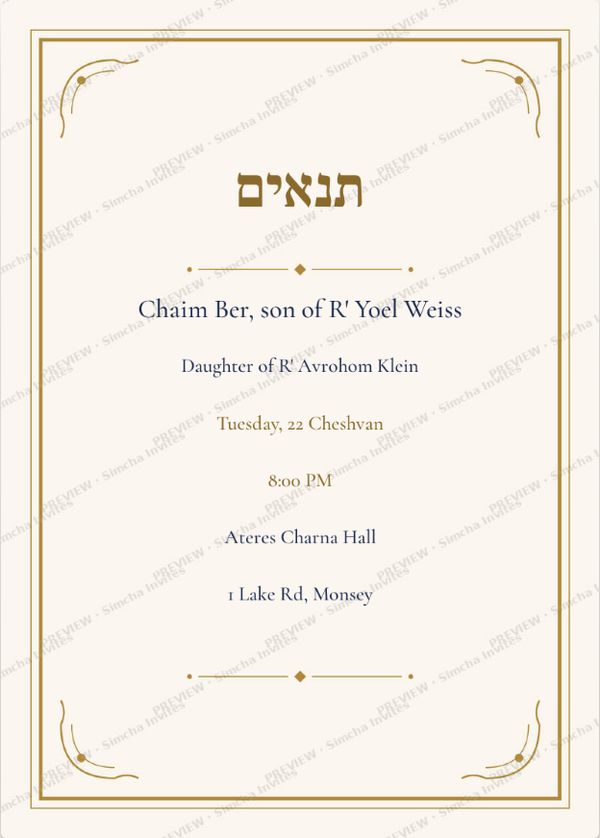
מחר אי"ה שמחת התנאים בשעה ___
ב___ (address)
נשמח לראותכם!
Shabbos and Yom Tov: a simcha on Friday night or Shabbos needs its reminder before Shabbos, ideally Thursday or Friday morning, well before candle lighting. If you are sending to Eretz Yisroel or anywhere east, remember that Shabbos starts there many hours earlier; a message sent Friday afternoon in New York arrives there on Shabbos. Send early. For a simcha right after Yom Tov, send before Yom Tov, because guests may be offline for two or three days. If you think about scheduling a message to go out by itself, ask your Rav first, and never set it to arrive on Shabbos or Yom Tov.
For full timing advice per simcha, see our guide to when to send simcha invitations.
Make it on our site, ready for sending
- Pick your simcha, for example Baby Boy designs (Sholom Zucher, Vachnacht, Pidyon Haben), Kiddush, Tenoyim or Bar Mitzvah, or browse all designs.
- Tap a design. Type your text into each box, in Hebrew, Yiddish, English or mixed.
- Choose a font for each text box, and use A− and A+ to make lines smaller or bigger. Tap any text on the card to select that box.
- Check the live preview. Look at it on your phone, the way guests will see it.
- If the design has a GIF version, choose whether to add it.
- Place the order and pay ($15).
- Download all three files: the PDF, the full-quality JPG and the small texting JPG (plus the GIF and small GIF if you added one).
- Send the small JPG on WhatsApp and by text, with one of the messages above.
The heading on each design is fixed (for example שלום זכר or תנאים), so pick the design that matches your simcha. For the wording itself, see our guides to sholom zucher wording, bar mitzvah wording and the Yiddish and Hebrew abbreviations used on cards.
Checklist before you press send
- You are sending the small texting JPG, not a screenshot and not the PDF.
- Names, day, parsha, Hebrew date, time and full address are correct.
- The message next to the picture says what the simcha is, in case the picture doesn't open.
- Kosher-phone and flip-phone guests get a text-only version too.
- Close family and your Rav get a personal message, not only a broadcast.
- Broadcast guests have your number saved; if not, message them directly.
- Email guests are in Bcc.
- Everything goes out before Shabbos or Yom Tov, with time to spare for other time zones.
- You have a reminder planned for the day before.
Common mistakes
- Sending the print file. The full-quality JPG and the PDF are for printing. On phones they are slow, and in picture messages they can be shrunk until they're blurry, or fail.
- Only a picture, no words. Some phones show "picture message" without the picture. One line of text saves the guest a phone call.
- Relying on a broadcast for everyone. People who haven't saved your number never get it, and you never find out.
- Hundreds of people in a new group. Replies flood everyone. Use a broadcast list, or ask people not to reply in the group.
- A correction that looks like the original. If a time changes, send the new card with a clear first line like "Updated time" so nobody keeps the old one.
Frequently asked questions
Which file should I send on WhatsApp?
Send the "Small – for texting (MMS), under 1 MB" JPG. It shows in the chat as a picture, stays clear on a phone, and loads fast. Keep the PDF and the full-quality JPG for printing.
Why did my invitation come out blurry in a text message?
Many carriers limit picture messages, often to around 1 MB, and a bigger picture is shrunk automatically or fails. Send the small texting JPG, and on iPhone check that Low Quality Image Mode is off in the Messages settings.
Can I send the PDF on WhatsApp?
Yes, as a document, but guests must tap to open it, and many simple phones cannot open a PDF. For invitations send the JPG; send the PDF only to someone who wants to print.
Why didn't some people get my broadcast message?
A WhatsApp broadcast only reaches people who have your number saved in their contacts. Send those guests a personal message instead.
Can a flip phone or kosher phone get the invitation?
Many flip phones receive picture messages, so send the small texting JPG. Some kosher lines block pictures, so also send a short text with the simcha, day, time and address.
Will a GIF work in a text message?
Many smartphones play GIFs in text messages, but some simpler phones show only a still picture. Send the small GIF on WhatsApp and the still small JPG to flip phones and kosher phones.
What should I write next to the picture?
One or two warm lines with the simcha, day, time and place, such as "Mazel tov! You're invited to the Vort, Tuesday 8:30 PM at ___. The invitation is attached." This guide has samples in Yiddish, Hebrew and English.
Is it polite to invite people only by WhatsApp?
For most simchas today, yes, a WhatsApp invitation is normal. For close family, your Rav, and older relatives, many families add a personal message or a phone call, and some still print cards for a chasuna.
Should I send a reminder?
A short reminder the day before, or the morning of an evening simcha, is helpful, especially if the invitation went out weeks earlier. For a Friday-night or Shabbos simcha, send it before Shabbos.
Can I send invitations on Friday afternoon?
Yes, if they arrive well before candle lighting for every guest. Remember that Shabbos starts hours earlier in Eretz Yisroel and Europe, so send to guests there earlier in the day or on Thursday.
Ready to send?
The right file, a short warm message, a reminder the day before. Every design on Simcha Invites comes with a small texting JPG made for exactly this.